Vendor Credits
Sometimes things don’t go exactly to plan — a shipment arrives damaged, you get overcharged on an invoice, or there’s a pricing dispute. That’s where Vendor Credits (also known as Debit Notes) come in. They let you record the amount a supplier owes you.
Think of it as a wallet with that specific vendor: use it to offset future bills, or record a cash refund if they send the money back directly.
Keep in mind that Vendor Credits cover the financial side of a supplier return. If you’re physically sending goods back, create the inventory return transfer from the original warehouse receipt too.
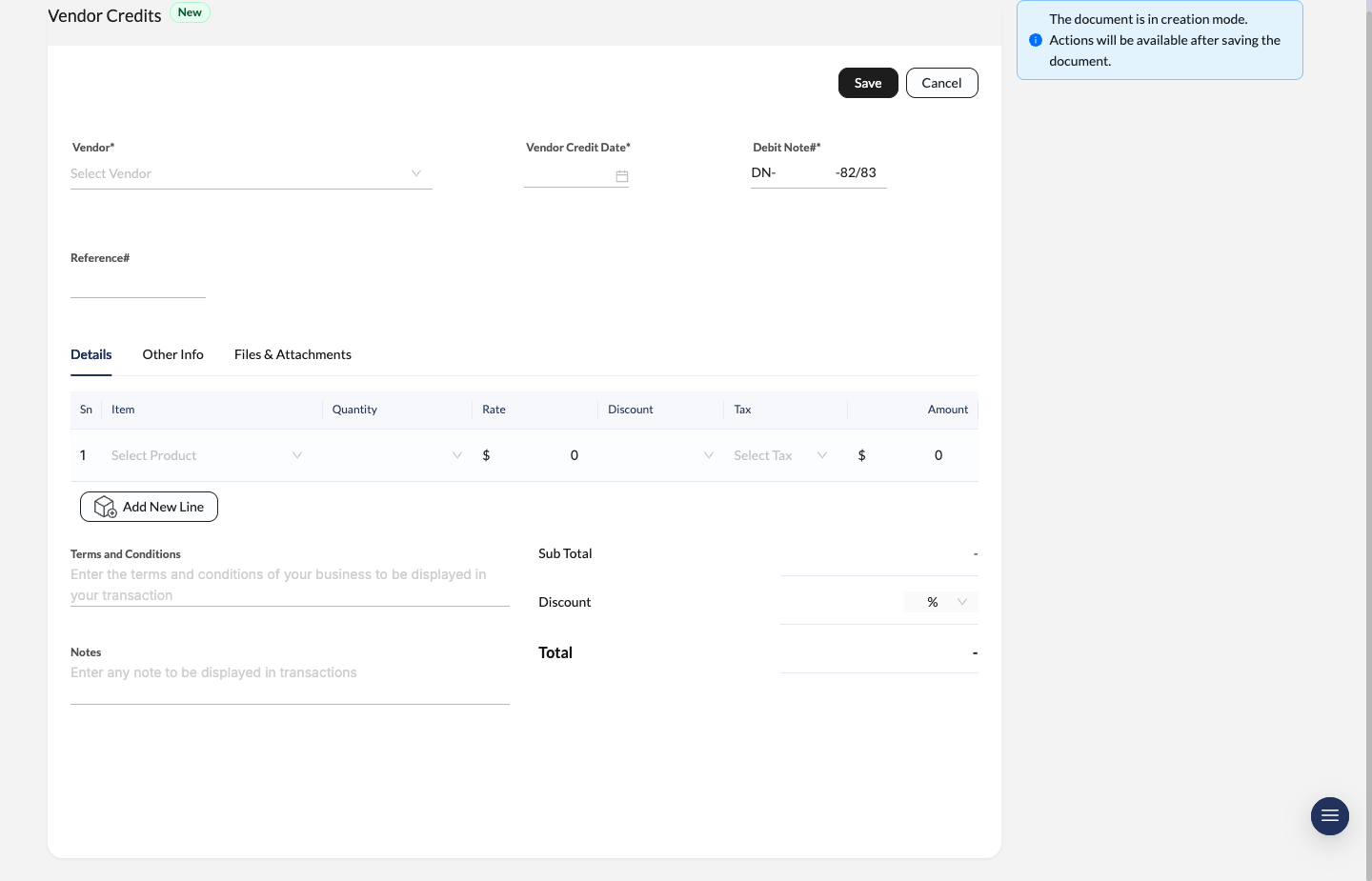
Vendor Credit form with vendor selection, debit note numbering, item lines, and totals.
Creating a Vendor Credit
Navigate to Buy > Vendor Credits and click New to begin.
Vendor Details
Select the Vendor issuing the credit.
- Vendor Credit Date: The date the credit was issued. Like everything else in Sevenledger, this supports local Nepali dates (e.g.,
2082-09-11). - Debit Note#: Auto-assigned with a sequential ID (e.g.,
DN-3-82/83) so your records stay gapless and audit-ready. - Reference#: Track the vendor’s internal credit number or the original PO number for quick cross-referencing.
Item Details
Specify the items you’re returning or being credited for:
- Item: Select the product (e.g., “Summer Sweatshirt”).
- Quantity & Rate: How many units and at what price.
- Tax: Make sure the tax rule matches the original bill — this keeps your VAT returns accurate.
Terms & Notes
Add any Terms and Conditions or internal Notes about why this credit was raised (e.g., “Returned due to color mismatch”).
Save
Double-check the Total amount and click Save.
Managing Your Credits
Once saved, a Vendor Credit becomes a financial asset on your books. The status bar at the top tells you exactly where things stand.
Understanding the Status
- Draft: Still working on the details — nothing has been finalized.
- Open: The credit is confirmed and ready to be used.
- Applied: Successfully used to pay off a bill (Highlighted in Green).
- Refunded: The vendor sent you cash or a bank transfer for this amount.
- Void: The credit note has been cancelled.
How to Use the Credit (Sidebar Actions)
The sidebar on the right is where you put this credit to work. You’ve got two main options:
Option 1: Apply to a Bill
Owe this vendor money for other items? Use this credit to reduce that debt.
- Look for the Credit Apply section in the sidebar.
- The system shows linked bills (e.g.,
BI-1-82/83) and the amount applied to each (e.g., Rs 5,125.00).
Option 2: Receive a Refund
Vendor sending the money back directly?
- Use the Credit Refund section in the sidebar.
- Click Refund Remaining Credits to any Account — you’ll be prompted to select which bank or cash account the refund was deposited into.
Pro Tip: Always cross-check your Debit Note# against your physical tax records to ensure compliance with local tax regulations.
Vendor Credits vs. Return Transfers
When you’ve already received items on a Purchase Order and later send some or all of them back:
- create the return transfer from the original receipt so stock moves out correctly,
- create the Vendor Credit if the supplier owes you a refund or credit.
If the issue is price-only or billing-only, you may not need a stock return at all.
Approval Workflow
If approval is enabled for Vendor Credits, the workflow starts after the record is saved and submitted.
- use Request Approval to send it into review,
- approvers can Approve or Reject the active step,
- rejected vendor credits can be revised and re-submitted.
Configure the workflow in Approval Policies.